


Have you ever seen a cache page with the SLAGA logo at the bottom of the description (think Strider)? Did you wonder how to add one of those to your cache page to support SLAGA? Well, here is a simple way to do that, with 2 options.
Open one of the following links in a browser window (you should see the image):
https://www.slaga.org/images/general_images/SLAGA_Logo.jpg
https://www.slaga.org/images/general_images/SLAGA_Logo_Member.jpg
Either
1) copy the image displayed (maybe right click and select "Copy Image") or
2) save it somewhere on your device (maybe right click and select "Save Image As...")
Edit your cache via geocaching.com and scroll down to the cache description.
Here is what the window might look like:
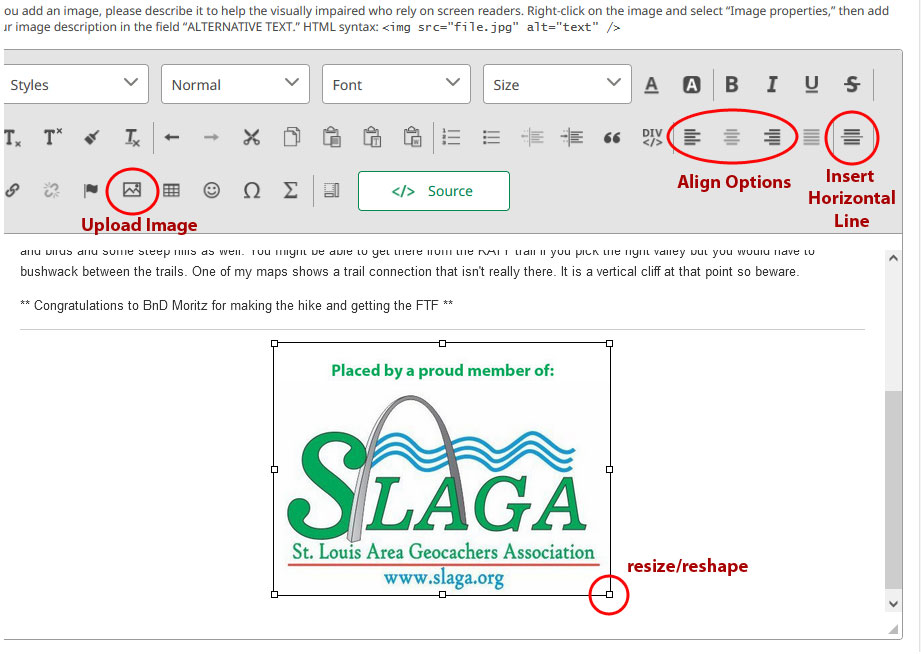
If you want to put a line between your text and the SLAGA Logo position your cursor below your text and use the "Insert Horizontal Line" button.
Position your cursor at the place where you want to insert the SLAGA Logo.
1) If you copied the image, paste the image using Ctrl-v, Command-v, or whatever your device requires.
2) If you saved the image on your device, after positioning the cursor where you want to insert the image select the "Upload Image" button, navigate to your saved image, select it and select "Open".
The image should show up where your cursor was positioned.
You can then resize/reshape the image by selecting the image and dragging one of the small boxes that appear. You can also position it within the page by selecting the image and using the "Align Left", "Align Right", or "Align Center" options.
Thanks for supporting your local geocaching organization, SLAGA!